Manage incidents
GX Cloud provides incident management integrations to help you triage, prioritize, assign, and track the resolution of data quality problems. When a Validation run fails, you can link Expectation failures to Jira issues to create incidents in GX Cloud. Linked issues are made accessible at the Data Asset level on the Incidents tab and on individual Validation runs on the Validations tab for visibility.
Integrations for PagerDuty and ServiceNow are coming soon. Contact us to learn more or to request a different integration.
GX Cloud supports a many-to-many relationship between Expectation failures and Jira issues.
- A given Expectation failure can be linked to multiple Jira issues. This is helpful if, for example, multiple teams need to be engaged to resolve a data quality problem.
- A given Jira issue can be linked to multiple Expectation failures. This is helpful if, for example, a single bug is suspected to be the root cause of multiple Expectation failures.
Here’s an example of how an organization might manage incidents on a Data Asset.
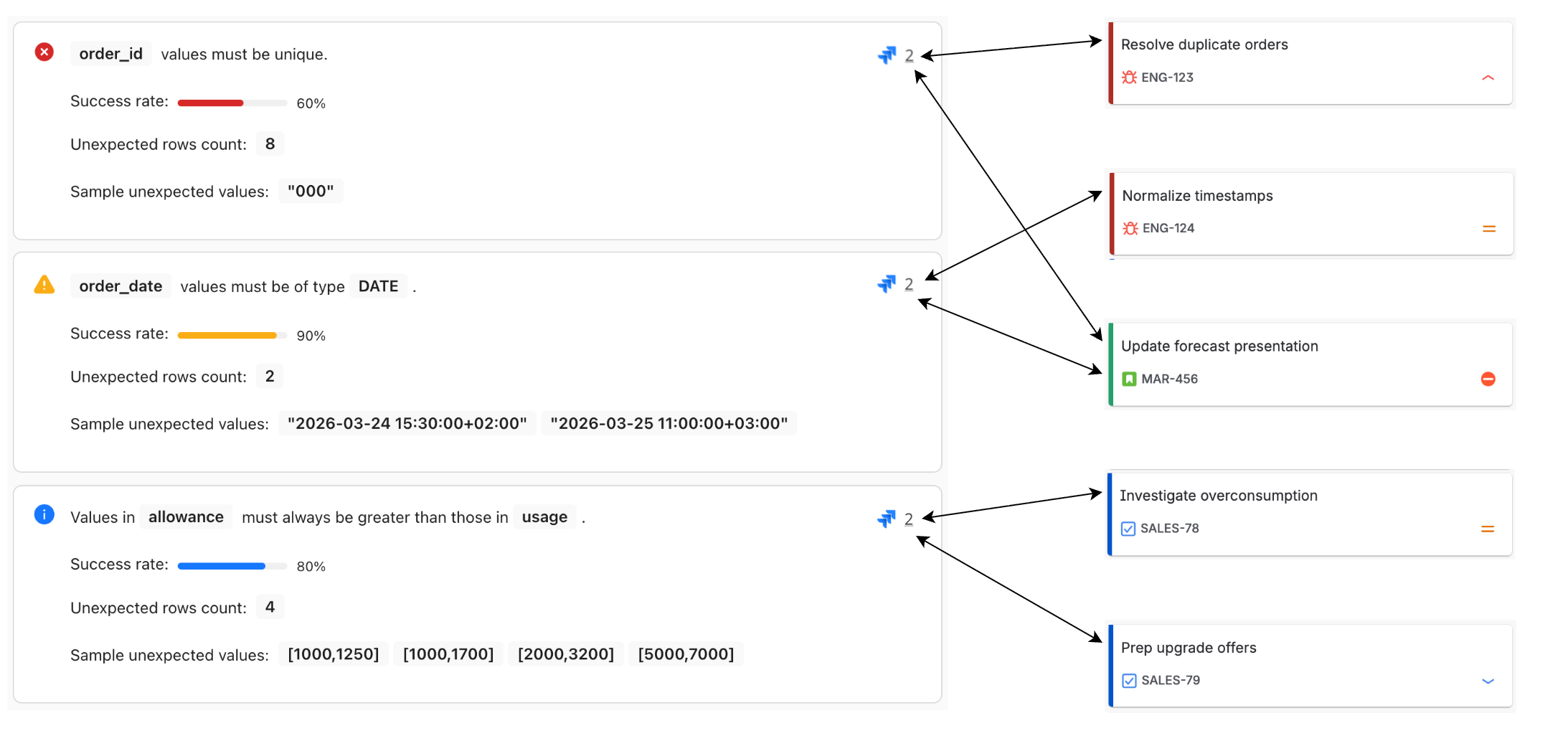
Keep the following in mind when working with incidents:
- To enable incident management, your GX Cloud workspace must be integrated with Jira.
- You must have Workspace Editor permissions or greater to manage incidents.
- All workspace members can view the Incidents tab and follow incident links.
- Closing an incident’s issue in Jira does not automatically resolve the incident in GX Cloud.
Create an incident
You can create an incident from the Incidents tab or the Validations tab. These two locations offer different options as follows:
- On the Incidents tab, you can link Jira issues to multiple failed Expectations from the last 5 failed Validation runs.
- On the Validations tab, you can link Jira issues to a single failed Expectation from any timeframe.
- Incidents
- Validations
- In GX Cloud, select the relevant Workspace and then click Data Assets.
- In the Data Assets list, click the Data Asset name.
- Click the Incidents tab.
- Click
 Link a Jira issue.
 - Select one or more Expectation failures.
- Select one or more Jira Issues.
- Click Save.
-
Navigate to a failed Validation run in one of the following ways:
-
From a Microsoft Teams, Slack, or email notification about Expectation failures, click View Validation Results or View details.
-
In GX Cloud, do the following:
- Select the relevant Workspace and then click Data Assets.
- In the Data Assets list, click the Data Asset name.
- Click the Validations tab.
- If you have multiple Expectation Suites, select the suite of interest.
- Select an entry in the Batches & run history pane.
-
-
Find the Expectation failure you want to link and click
Link a Jira issue. -
Select one or more Jira Issues.
-
Click Save.
Edit or resolve an incident
As data quality problems are addressed, you can unlink Expectation failures and Jira issues to resolve incidents. You can unlink a single Expectation failure or all Expectation failures that were linked to a Jira issue.
- Single
- All
- Select the relevant Workspace and then click Data Assets.
- In the Data Assets list, click the Data Asset name.
- Click the Validations tab.
- If you have multiple Expectation Suites, select the suite of interest.
- Select the relevant entry in the Batches & run history pane.
- Find the Expectation failure you want to unlink and click the
 Jira icon.
 - Find the issue you want to unlink and click
 Unlink issue.
 - Review the warning and click Unlink to confirm.
If the issue was linked to multiple Expectation failures, it will remain on the Incidents tab to track those remaining links. If the issue was linked to only the one Expectation failure, the issue will be removed from the Incidents tab as fully resolved.
- In GX Cloud, select the relevant Workspace and then click Data Assets.
- In the Data Assets list, click the Data Asset name.
- Click the Incidents tab.
- Find the issue you want to unlink and click Unlink issue.
- Review the warning and click Unlink to confirm.
The issue will be removed from the Incidents tab as fully resolved.